
These are the ramblings of Matthijs Kooijman, concerning the software he hacks on, hobbies he has and occasionally his personal life.
Most content on this site is licensed under the WTFPL, version 2 (details).
Questions? Praise? Blame? Feel free to contact me.
My old blog (pre-2006) is also still available.
See also my Mastodon page.
| Sun | Mon | Tue | Wed | Thu | Fri | Sat |
|---|---|---|---|---|---|---|
| 1 | ||||||
| 2 | 3 | 4 | 5 | 6 | 7 | 8 |
| 9 | 10 | 11 | 12 | 13 | 14 | 15 |
| 16 | 17 | 18 | 19 | 20 | 21 | 22 |
| 23 | 24 | 25 | 26 | 27 | 28 | 29 |
| 30 |
(...), Arduino, AVR, BaRef, Blosxom, Book, Busy, C++, Charity, Debian, Electronics, Examination, Firefox, Flash, Framework, FreeBSD, Gnome, Hardware, Inter-Actief, IRC, JTAG, LARP, Layout, Linux, Madness, Mail, Math, MS-1013, Mutt, Nerd, Notebook, Optimization, Personal, Plugins, Protocol, QEMU, Random, Rant, Repair, S270, Sailing, Samba, Sanquin, Script, Sleep, Software, SSH, Study, Supermicro, Symbols, Tika, Travel, Trivia, USB, Windows, Work, X201, Xanthe, XBee
 &
&
(With plugins: config, extensionless, hide, tagging, Markdown, macros, breadcrumbs, calendar, directorybrowse, entries_index, feedback, flavourdir, include, interpolate_fancy, listplugins, menu, pagetype, preview, seemore, storynum, storytitle, writeback_recent, moreentries)
Valid XHTML 1.0 Strict & CSS
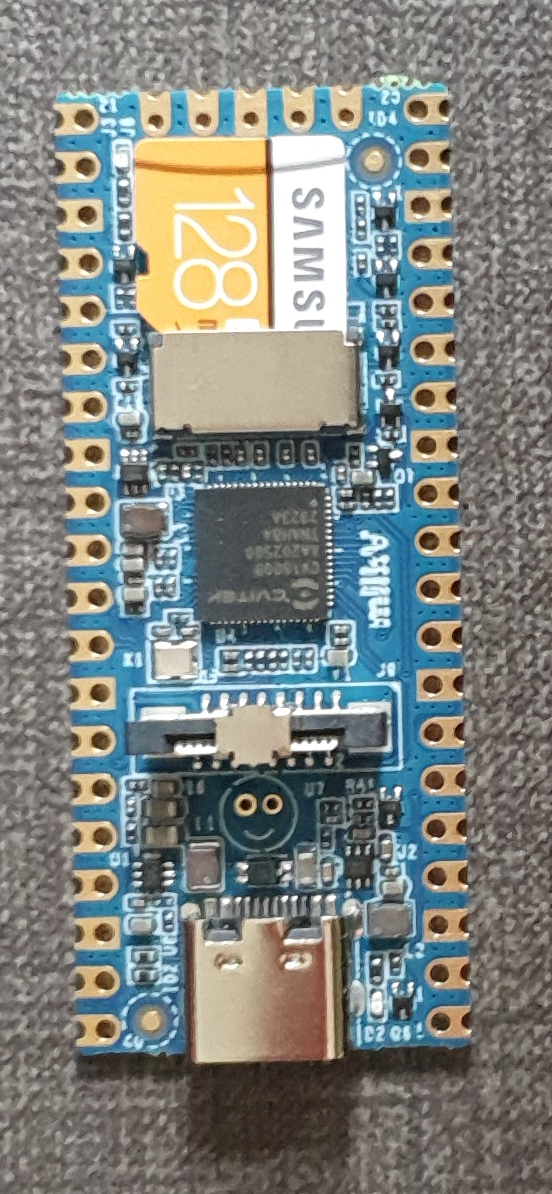
For a project (building a low-power LoRaWAN gateway to be solar powered) I am looking at simple and low-power linux boards. One board that I came across is the Milk-V Duo, which looks very promising. I have been playing around with it for just a few hours, and I like the board (and its SoC) very much already - for its size, price and open approach to documentation.
The board itself is a small (21x51mm) board in Raspberry Pi Pico form factor. It is very simple - essentially only a SoC and regulators. The SoC is the CV1800B by Sophgo, (a vendor I had never heard of until now, seems they were called CVITEK before). It is based on the RISC-V architecture, which is nice. It contains two RISC-V cores (one at 1Ghz and one at 700Mhz), as well as a small 8051 core for low-level tasks. The SoC has 64MB of integrated RAM.
The SoC supports the usual things - SPI, I²C, UART. There is also a CSI (camera) connector and some AI accelaration block, it seems the chip is targeted at the AI computer vision market (but I am ignoring that for my usecase). The SoC also has an ethernet controller and PHY integrated (but no ethernet connector, so you still need an external magjack to use it). My board has an SD card slot for booting, the specs suggest that there might also be a version that has on-board NAND flash instead of SD (cannot combine both, since they use the same pins).
There are two other variants - the Duo 256M with more RAM (board is identical except for 1 extra power supply, just uses a different SoC with more RAM) and the Duo S (in what looks like Rock Pi S form factor) which adds an ethernet and USB host port. I have not tested either of these and they use a different SoC series (SG200x) of the same chip vendor, so things I write might or might not be applicable to them (but the chips might actually be very similar internally, the CVx to SGx change seems to be related to the company merger, not necessarily technical differences).
The biggest (or at least most distinguishing) selling point, to me, is that both the chip and board manufacturers seem to be going for a very open approach. In particular:
On my server, I use LVM for managing partitions. I have one big "data" partition that is stored on an HDD, but for a bit more speed, I have an LVM cache volume linked to it, so commonly used data is cached on an SSD for faster read access.
Today, I wanted to resize the data volume:
# lvresize -L 300G tika/data
Unable to resize logical volumes of cache type.
Bummer. Googling for the error message showed me some helpful posts here and here that told me you have to remove the cache from the data volume, resize the data volume and then set up the cache again.
For this, they used lvconvert --uncache, which detaches and deletes
the cache volume or cache pool completely, so you then have to recreate
the entire cache (and thus figure out how you created it in the first
place).
Trying to understand my own work from long ago, I looked through
documentation and found the lvconvert --splitcache in
lvmcache(7), which detached a cache volume or cache pool,
but does not delete it. This means you can resize and just reattached
the cache again, which is a lot less work (and less error prone).
For an example, here is how the relevant volumes look:
# lvs -a
LV                VG   Attr       LSize   Pool              Origin       Data%  Meta%  Move Log Cpy%Sync Convert
data              tika Cwi-aoC--- 300.00g [data-cache_cvol] [data_corig] 2.77   13.11           0.00
[data-cache_cvol] tika Cwi-aoC---  20.00g
[data_corig]      tika owi-aoC--- 300.00g
Here, data is a "cache" type LV that ties together the big data_corig LV
that contains the bulk data and small data-cache_cvol that contains the
cached data.
After detaching the cache with --splitcache, this changes to:
# lvs -a
LV               VG   Attr       LSize   Pool Origin Data%  Meta%  Move Log Cpy%Sync Convert
data             tika -wi-ao---- 300.00g
data-cache       tika -wi-------  20.00g
I think the previous data cache LV was removed, data_corig was renamed to
data and data-cache_cvol was renamed to data-cache again.
The actual resize
Armed with this knowledge, here's how the ful resize works:
lvconvert --splitcache tika/data
lvresize -L 300G tika/data @hdd
lvconvert --type cache --cachevol tika/data-cache tika/data --cachemode writethrough
The last command might need some additional parameters depending on how you set
up the cache in the first place. You can view current cache parameters with
e.g. lvs -a -o +cache_mode,cache_settings,cache_policy.
Cache pools
Note that all of this assumes using a cache volume an not a cache pool. I was originally using a cache pool setup, but it seems that a cache pool (which splits cache data and cache metadata into different volumes) is mostly useful if you want to split data and metadata over different PV's, which is not at all useful for me. So I switched to the cache volume approach, which needs fewer commands and volumes to set up.
I killed my cache pool setup with --uncache before I found out about
--splitcache, so I did not actually try --splitcache with a cache pool, but
I think the procedure is actually pretty much identical as described above,
except that you need to replace --cachevol with --cachepool in the last
command.
For reference, here's what my volumes looked like when I was still using a cache pool:
# lvs -a
LV                 VG   Attr       LSize   Pool         Origin       Data%  Meta%  Move Log Cpy%Sync Convert
data               tika Cwi-aoC--- 260.00g [data-cache] [data_corig] 99.99  19.39           0.00
[data-cache]       tika Cwi---C---  20.00g                           99.99  19.39           0.00
[data-cache_cdata] tika Cwi-ao----  20.00g
[data-cache_cmeta] tika ewi-ao----  20.00m
[data_corig]       tika owi-aoC--- 260.00g
This is a data volume of type cache, that ties together the big data_corig
LV that contains the bulk data and a data-cache LV of type cache-pool that
ties together the data-cache_cdata LV with the actual cache data and
data-cache_cmeta with the cache metadata.
A few months ago, I put up an old Atom-powered Supermicro server (SYS-5015A-PHF) again, to serve at De War to collect and display various sensor and energy data about our building.
The server turned out to have an annoying habit: every now and then it would start beeping (one continuous annoying beep), that would continue until the machine was rebooted. It happened sporadically, but kept coming back. When I used this machine before, it was located in a datacenter where nobody would care about a beep more or less (so maybe it has been beeping for years on end before I replaced the server), but now it was in a server cabinet inside our local Fablab, where there are plenty of people to become annoyed by a beeping server...
I eventually traced this back to faulty sensor readings and fixed this by disabling the faulty sensors completely in the server's IPMI unit, which will hopefully prevent the annoying beep. In this post, I'll share my steps, in case anyone needs to do the same.
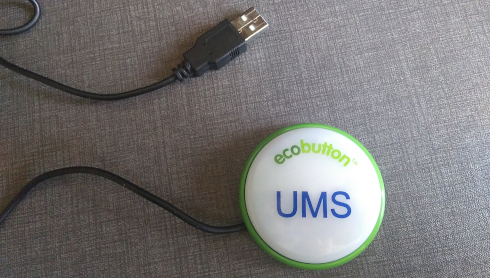
When sorting out some stuff today I came across an "Ecobutton". When you attach it through USB to your computer and press the button, your computer goes to sleep (at least that is the intention).
The idea is that it makes things more sustainable because you can more easily put your computer to sleep when you walk away from it. As this tweakers poster (Dutch) eloquently argues, having more plastic and electronics produced in China, shipped to Europe and sold here for €18 or so probably does not have a net positive effect on the environment or your wallet, but well, given this button found its way to me, I might as well see if I can make it do something useful.
I had previously started a project to make a "Next" button for spotify that you could carry around and would (wirelessly - with an ESP8266 inside) skip to the next song using the Spotify API whenever you pressed it. I had a basic prototype working, but then the project got stalled on figuring out an enclosure and finding sufficiently low-power addressable RGB LEDs (documentation about this is lacking, so I resorted to testing two dozen different types of LEDs and creating a website to collect specs and test results for adressable LEDs, which then ended up with the big collection of other Yak-shaving projects waiting for this magical moment where I suddenly have a lot of free time).
In any case, it seemed interesting to see if this Ecobutton could be used as poor-man's spotify next button. Not super useful, but at least now I can keep the button around knowing I can actually use it for something in the future. I also produced some useful (and not readily available) documentation about remapping keys with hwdb in the process, so it was at least not a complete waste of time... Anyway, into the technical details...
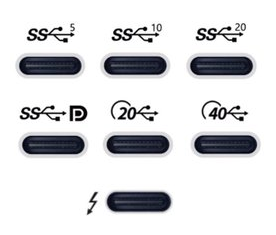
After I recently ordered a new laptop, I have been looking for a USB-C-connected dock to be used with my new laptop. This turned out to be quite complex, given there are really a lot of different bits of technology that can be involved, with various (continuously changing, yes I'm looking at you, USB!) marketing names to further confuse things.
As I'm prone to do, rather than just picking something and seeing if it works, I dug in to figure out how things really work and interact. I learned a ton of stuff in a short time, so I really needed to write this stuff down, both for my own sanity and future self, as well as for others to benefit.
I originally posted my notes on the Framework community forum, but it seemed more appropriate to publish them on my own blog eventually (also because there's no 32,000 character limit here :-p).
There are still quite a few assumptions or unknowns below, so if you have any confirmations, corrections or additions, please let me know in a reply (either here, or in the Framework community forum topic).
Parts of this post are based on info and suggestions provided by others on the Framework community forum, so many thanks to them!
Getting started
First off, I can recommend this article with a bit of overview and history of the involved USB and Thunderbolt technolgies.
Then, if you're looking for a dock, like I was, the Framework community forum has a good list of docks (focused on Framework operability), and Dan S. Charlton published an overview of Thunderbolt 4 docks and an overview of USB-C DP-altmode docks (both posts with important specs summarized, and occasional updates too).
Then, into the details...
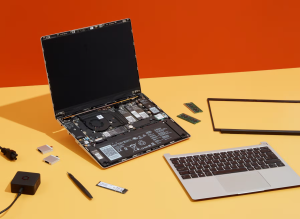
For a while, I've been considering replacing Grubby, my trusty workhorse laptop, a Thinkpad X201 that I've been using for the past 11 years. These thinkpads are known to last, and indeed mine still worked nicely, but over the years lost Bluetooth functionality, speaker output, one of its USB ports (I literally lost part of the connector), some small bits of the casing (dropped something heavy on it), the fan sometimes made a grinding noise, and it was getting a little slow at times (but still fine for work). I had been postponing getting a replacement, though, since having to figure out what to get, comparing models, reading reviews is always a hassle (especially for me...).
Then, when I first saw the Framework laptop last year, I was immediately sold. It's a laptop that aims to be modular, in the sense that it can be easily repaired and upgraded. To be honest, this did not seem all that special to me at first, but apparently in the 11 years since I last bought a laptop, manufacturers have been more using glue rather than screws, and solder rather than sockets, which is a trend that Framework hopes to turn.
In addition to the modularity, I like the fact they make repairability and upgradability an explicit goal, in attempt to make the electronics ecosystem more sustainable (they remind me of Fairphone in that sense). On top of that, it seems that this is also a really well made laptop, with a lot of attention to details, explicit support for Linux, open-source where possible (e.g. code for the embedded controller is open, ), flexible expansion ports using replacable modules, encouraging third parties to build and market their own expansion cards and addons (with open-source reference designs available), a mainboard that can be used standalone too (makes for a nice SBC after a mainboard upgrade), decent keyboard, etc.
The only things that I'm less enthusiastic about are the reflective screen (I had that on my previous laptop and I remember liking the switch to a matte screen, but I guess I'll get used to that), having just four expansion ports (the only fixed port is an audio jack, everything else - USB, displays, card reader - has to go through expansion modules, so we'll see if I can get by with four ports) and the lack of an ethernet port (apparently there is an ethernet expansion module in the works, but I'll probably have to get a USB-to-ethernet module in the meanwhile).
Unfortunately, when I found the Framework laptop a few months ago, they were not actually being sold yet, though they expected to open up pre-orders in December. I really hoped Grubby would last long enough so I could get a Framework laptop. Then pre-orders opened only for US and Canada, with shipping to the EU announced for Q1 this year. Then they opened up orders for Germany, France and the UK, and I still had to wait...
So when they opened up pre-orders in the Netherlands last month, I immediately placed my order. They are using a batched shipping system and my batch is supposed to ship "in March" (part of the batch has already been shipped), so I'm hoping to get the new laptop somewhere it the coming weeks.
I suspect that Grubby took notice, because last friday, with a small sputter, he powered off unexpectedly and has refused to power back on. I've tried some CPR, but no luck so far, so I'm afraid it's the end for Grubby. I'm happy that I already got my Framework order in, since now I just borrowed another laptop as a temporary solution rather than having to panic and buy something else instead.
So, I'm eager for my Framework laptop to be delivered. Now, I just need to pick a new name, and figure out which Thunderbolt dock I want... (I had an old-skool docking station for my Thinkpad, which worked great, but with USB-C and Thunderbolt's single cable for power, display, usb and ethernet, there is now a lot more choice in docks, but more on that in my next post...).
Recently, I've been working with STM32 chips for a few different projects and customers. These chips are quite flexible in their pin assignments, usually most peripherals (i.e. an SPI or UART block) can be mapped onto two or often even more pins. This gives great flexibility (both during board design for single-purpose boards and later for a more general purpose board), but also makes it harder to decide and document the pinout of a design.
ST offers STM32CubeMX, a software tool that helps designing around an STM32 MCU, including deciding on pinouts, and generating relevant code for the system as well. It is probably a powerful tool, but it is a bit heavy to install and AFAICS does not really support general purpose boards (where you would choose between different supported pinouts at runtime or compiletime) well.
So in the past, I've used a trusted tool to support this process: A spreadsheet that lists all pins and all their supported functions, where you can easily annotate each pin with all the data you want and use colors and formatting to mark functions as needed to create some structure in the complexity.
However, generating such a pinout spreadsheet wasn't particularly easy. The tables from the datasheet cannot be easily copy-pasted (and the datasheet has the alternate and additional functions in two separate tables), and the STM32CubeMX software can only seem to export a pinout table with alternate functions, not additional functions. So we previously ended up using the CubeMX-generated table and then adding the additional functions manually, which is annoying and error-prone.
So I dug around in the CubeMX data files a bit, and found that it has an XML file for each STM32 chip that lists all pins with all their functions (both alternate and additional). So I wrote a quick Python script that parses such an XML file and generates a CSV script. The script just needs Python3 and has no additional dependencies.
To run this script, you will need the XML file for the MCU you are interested in from inside the CubeMX installation. Currently, these only seem to be distributed by ST as part of CubeMX. I did find one third-party github repo with the same data, but that wasn't updated in nearly two years). However, once you generate the pin listing and publish it (e.g. in a spreadsheet), others can of course work with it without needing CubeMX or this script anymore.
For example, you can run this script as follows:
$ ./stm32pinout.py /usr/local/cubemx/db/mcu/STM32F103CBUx.xml
name,pin,type
VBAT,1,Power
PC13-TAMPER-RTC,2,I/O,GPIO,EXTI,EVENTOUT,RTC_OUT,RTC_TAMPER
PC14-OSC32_IN,3,I/O,GPIO,EXTI,EVENTOUT,RCC_OSC32_IN
PC15-OSC32_OUT,4,I/O,GPIO,EXTI,ADC1_EXTI15,ADC2_EXTI15,EVENTOUT,RCC_OSC32_OUT
PD0-OSC_IN,5,I/O,GPIO,EXTI,RCC_OSC_IN
(... more output truncated ...)
The script is not perfect yet (it does not tell you which functions correspond to which AF numbers and the ordering of functions could be improved, see TODO comments in the code), but it gets the basic job done well.
You can find the script in my "scripts" repository on github.
Update: It seems the XML files are now also available separately on github: https://github.com/STMicroelectronics/STM32_open_pin_data, and some of the TODOs in my script might be solvable.
For this blog, I wanted to include some nicely-formatted formulas. An easy way to do so, is to use MathJax, a javascript-based math processor where you can write formulas using (among others) the often-used Tex math syntax.
However, I use Markdown to write my blogposts and including formulas directly in the text can be problematic because Markdown might interpret part of my math expressions as Markdown and transform them before MathJax has had a chance to look at them. In this post, I present a customized MathJax configuration that solves this problem in a reasonable elegant way.
Or: Forcing Linux to use the USB HID driver for a non-standards-compliant USB keyboard.
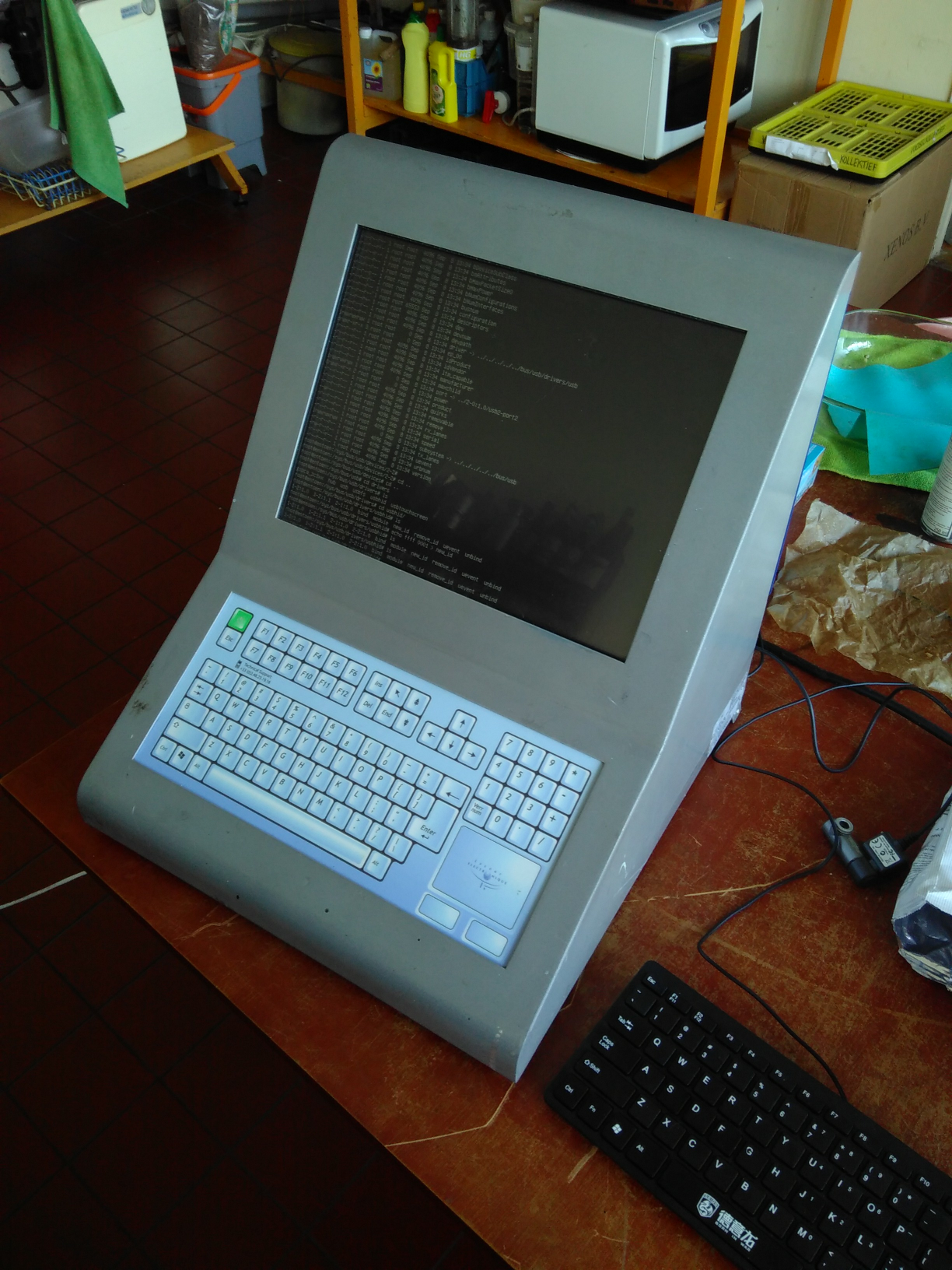
For an interactive art installation by the Spullenmannen, a friend asked me to have a look at an old paint mixing terminal that he wanted to use. The terminal is essentially a small computer, in a nice industrial-looking sealed casing, with a (touch?) screen, keyboard and touchpad. It was by "Lacour" and I think has been used to control paint mixing machines.
They had already gotten Linux running on the system, but could not get the keyboard to work and asked me if I could have a look.
The keyboard did work in the BIOS and grub (which also uses the BIOS), so we know it worked. Also, the BIOS seemed pretty standard, so it was unlikely that it used some very standard protocol or driver and I guessed that this was a matter of telling Linux which driver to use and/or where to find the device.
Inside the machine, it seemed the keyboard and touchpad were separate devices, controlled by some off-the-shelf microcontroller chip (probably with some custom software inside). These devices were connected to the main motherboard using a standard 10-pin expansion header intended for external USB ports, so it seemed likely that these devices were USB ports.
For a customer, I've been looking at RS-485 and MODBUS, two related protocols for transmitting data over longer distances, and the various Arduino libraries that exist to work with them.
They have been working on a project consisting of multiple Arduino boards that have to talk to each other to synchronize their state. Until now, they have been using I²C, but found that this protocol is quite susceptible to noise when used over longer distances (1-2m here). Combined with some limitations in the AVR hardware and a lack of error handling in the Arduino library that can cause the software to lock up in the face of noise (see also this issue report), makes I²C a bad choice in such environments.
So, I needed something more reliable. This should be a solved problem, right?