
These are the ramblings of Matthijs Kooijman, concerning the software he hacks on, hobbies he has and occasionally his personal life.
Most content on this site is licensed under the WTFPL, version 2 (details).
Questions? Praise? Blame? Feel free to contact me.
My old blog (pre-2006) is also still available.
See also my Mastodon page.
| Sun | Mon | Tue | Wed | Thu | Fri | Sat |
|---|---|---|---|---|---|---|
| 1 | 2 | 3 | 4 | 5 | 6 | |
| 7 | 8 | 9 | 10 | 11 | 12 | 13 |
| 14 | 15 | 16 | 17 | 18 | 19 | 20 |
| 21 | 22 | 23 | 24 | 25 | 26 | 27 |
| 28 | 29 | 30 |
(...), Arduino, AVR, BaRef, Blosxom, Book, Busy, C++, Charity, Debian, Electronics, Examination, Firefox, Flash, Framework, FreeBSD, Gnome, Hardware, Inter-Actief, IRC, JTAG, LARP, Layout, Linux, Madness, Mail, Math, MS-1013, Mutt, Nerd, Notebook, Optimization, Personal, Plugins, Protocol, QEMU, Random, Rant, Repair, S270, Sailing, Samba, Sanquin, Script, Sleep, Software, SSH, Study, Supermicro, Symbols, Tika, Travel, Trivia, USB, Windows, Work, X201, Xanthe, XBee
 &
&
(With plugins: config, extensionless, hide, tagging, Markdown, macros, breadcrumbs, calendar, directorybrowse, entries_index, feedback, flavourdir, include, interpolate_fancy, listplugins, menu, pagetype, preview, seemore, storynum, storytitle, writeback_recent, moreentries)
Valid XHTML 1.0 Strict & CSS
On my server, I use LVM for managing partitions. I have one big "data" partition that is stored on an HDD, but for a bit more speed, I have an LVM cache volume linked to it, so commonly used data is cached on an SSD for faster read access.
Today, I wanted to resize the data volume:
# lvresize -L 300G tika/data
Unable to resize logical volumes of cache type.
Bummer. Googling for the error message showed me some helpful posts here and here that told me you have to remove the cache from the data volume, resize the data volume and then set up the cache again.
For this, they used lvconvert --uncache, which detaches and deletes
the cache volume or cache pool completely, so you then have to recreate
the entire cache (and thus figure out how you created it in the first
place).
Trying to understand my own work from long ago, I looked through
documentation and found the lvconvert --splitcache in
lvmcache(7), which detached a cache volume or cache pool,
but does not delete it. This means you can resize and just reattached
the cache again, which is a lot less work (and less error prone).
For an example, here is how the relevant volumes look:
# lvs -a
LV                VG   Attr       LSize   Pool              Origin       Data%  Meta%  Move Log Cpy%Sync Convert
data              tika Cwi-aoC--- 300.00g [data-cache_cvol] [data_corig] 2.77   13.11           0.00
[data-cache_cvol] tika Cwi-aoC---  20.00g
[data_corig]      tika owi-aoC--- 300.00g
Here, data is a "cache" type LV that ties together the big data_corig LV
that contains the bulk data and small data-cache_cvol that contains the
cached data.
After detaching the cache with --splitcache, this changes to:
# lvs -a
LV               VG   Attr       LSize   Pool Origin Data%  Meta%  Move Log Cpy%Sync Convert
data             tika -wi-ao---- 300.00g
data-cache       tika -wi-------  20.00g
I think the previous data cache LV was removed, data_corig was renamed to
data and data-cache_cvol was renamed to data-cache again.
The actual resize
Armed with this knowledge, here's how the ful resize works:
lvconvert --splitcache tika/data
lvresize -L 300G tika/data @hdd
lvconvert --type cache --cachevol tika/data-cache tika/data --cachemode writethrough
The last command might need some additional parameters depending on how you set
up the cache in the first place. You can view current cache parameters with
e.g. lvs -a -o +cache_mode,cache_settings,cache_policy.
Cache pools
Note that all of this assumes using a cache volume an not a cache pool. I was originally using a cache pool setup, but it seems that a cache pool (which splits cache data and cache metadata into different volumes) is mostly useful if you want to split data and metadata over different PV's, which is not at all useful for me. So I switched to the cache volume approach, which needs fewer commands and volumes to set up.
I killed my cache pool setup with --uncache before I found out about
--splitcache, so I did not actually try --splitcache with a cache pool, but
I think the procedure is actually pretty much identical as described above,
except that you need to replace --cachevol with --cachepool in the last
command.
For reference, here's what my volumes looked like when I was still using a cache pool:
# lvs -a
LV                 VG   Attr       LSize   Pool         Origin       Data%  Meta%  Move Log Cpy%Sync Convert
data               tika Cwi-aoC--- 260.00g [data-cache] [data_corig] 99.99  19.39           0.00
[data-cache]       tika Cwi---C---  20.00g                           99.99  19.39           0.00
[data-cache_cdata] tika Cwi-ao----  20.00g
[data-cache_cmeta] tika ewi-ao----  20.00m
[data_corig]       tika owi-aoC--- 260.00g
This is a data volume of type cache, that ties together the big data_corig
LV that contains the bulk data and a data-cache LV of type cache-pool that
ties together the data-cache_cdata LV with the actual cache data and
data-cache_cmeta with the cache metadata.
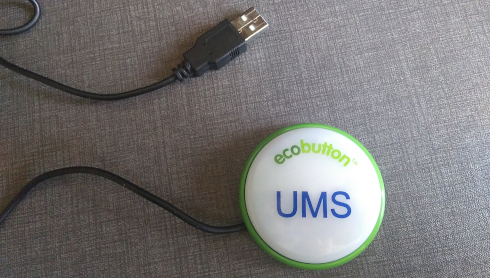
When sorting out some stuff today I came across an "Ecobutton". When you attach it through USB to your computer and press the button, your computer goes to sleep (at least that is the intention).
The idea is that it makes things more sustainable because you can more easily put your computer to sleep when you walk away from it. As this tweakers poster (Dutch) eloquently argues, having more plastic and electronics produced in China, shipped to Europe and sold here for €18 or so probably does not have a net positive effect on the environment or your wallet, but well, given this button found its way to me, I might as well see if I can make it do something useful.
I had previously started a project to make a "Next" button for spotify that you could carry around and would (wirelessly - with an ESP8266 inside) skip to the next song using the Spotify API whenever you pressed it. I had a basic prototype working, but then the project got stalled on figuring out an enclosure and finding sufficiently low-power addressable RGB LEDs (documentation about this is lacking, so I resorted to testing two dozen different types of LEDs and creating a website to collect specs and test results for adressable LEDs, which then ended up with the big collection of other Yak-shaving projects waiting for this magical moment where I suddenly have a lot of free time).
In any case, it seemed interesting to see if this Ecobutton could be used as poor-man's spotify next button. Not super useful, but at least now I can keep the button around knowing I can actually use it for something in the future. I also produced some useful (and not readily available) documentation about remapping keys with hwdb in the process, so it was at least not a complete waste of time... Anyway, into the technical details...
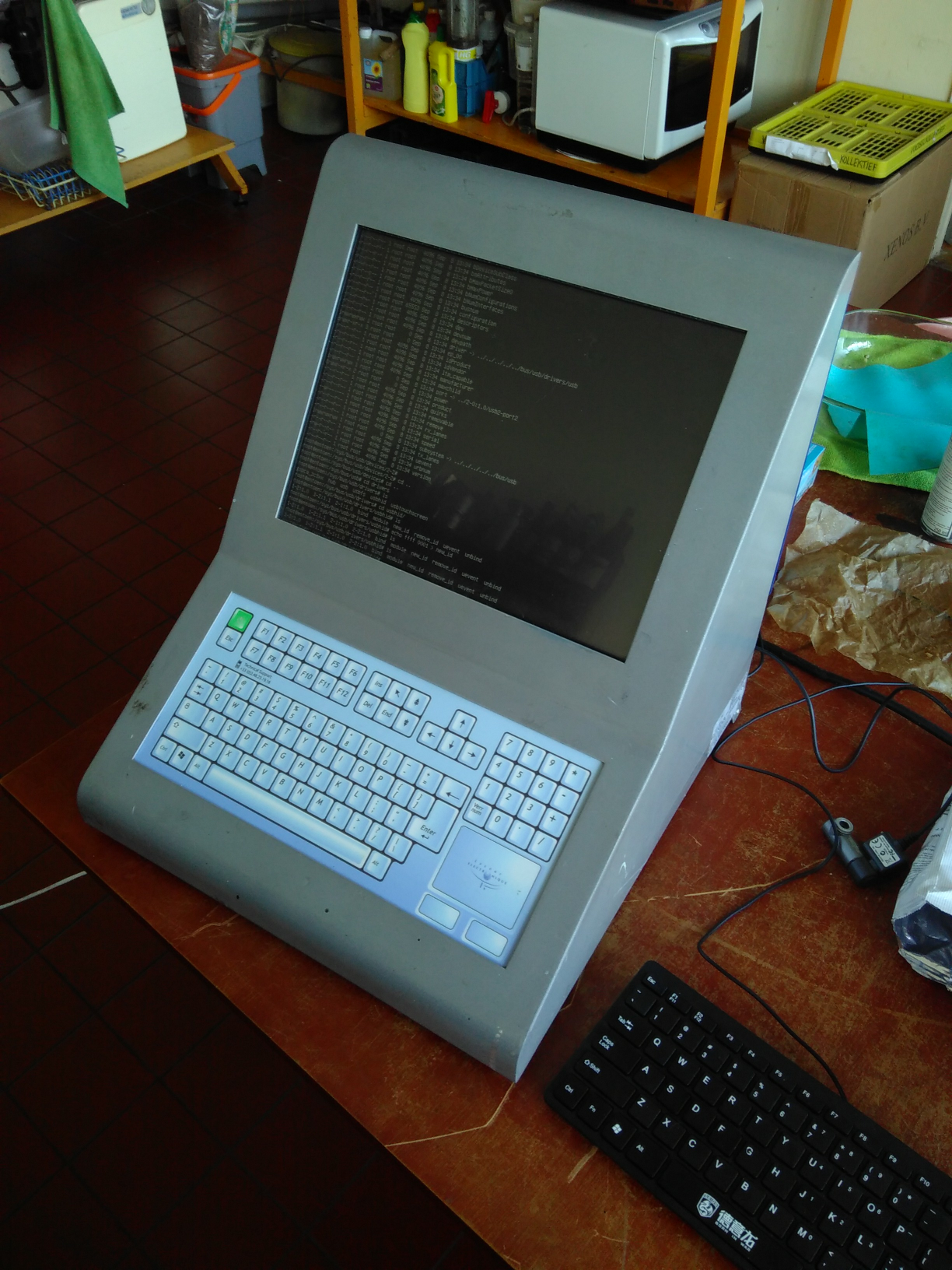
Or: Forcing Linux to use the USB HID driver for a non-standards-compliant USB keyboard.
For an interactive art installation by the Spullenmannen, a friend asked me to have a look at an old paint mixing terminal that he wanted to use. The terminal is essentially a small computer, in a nice industrial-looking sealed casing, with a (touch?) screen, keyboard and touchpad. It was by "Lacour" and I think has been used to control paint mixing machines.
They had already gotten Linux running on the system, but could not get the keyboard to work and asked me if I could have a look.
The keyboard did work in the BIOS and grub (which also uses the BIOS), so we know it worked. Also, the BIOS seemed pretty standard, so it was unlikely that it used some very standard protocol or driver and I guessed that this was a matter of telling Linux which driver to use and/or where to find the device.
Inside the machine, it seemed the keyboard and touchpad were separate devices, controlled by some off-the-shelf microcontroller chip (probably with some custom software inside). These devices were connected to the main motherboard using a standard 10-pin expansion header intended for external USB ports, so it seemed likely that these devices were USB ports.
Recently, a customer asked me te have a look at an external hard disk he was using with his Macbook. It would show up a file listing just fine, but when trying to open actual files, it would start failing. Of course there was no backup, but the files were very precious...
This started out as a small question, but ended up in an adventure that spanned a few days and took me deep into the ddrescue recovery tool, through the HFS+ filesystem and past USB power port control. I learned a lot, discovered some interesting things and produced a pile of scripts that might be helpful to others. Since the journey seems interesting as well as the end result, I will describe the steps I took here, "ter leering ende vermaeck".

I recently upgraded my systems to Debian Stretch, which caused GnuPG to stop working within Mutt. I'm not exactly sure what was wrong, but I discovered that GnuPG version 2 changed quite some things and relies more heavily on the gpg-agent, and I discovered that recent SSH version can forward unix domain socket instead of just TCP sockets, which allows forwarding a gpg-agent connection over SSH.
Until now, I had my GPG private keys stored on my server, Tika, where my Mutt mail client also runs. However, storing private keys, even with a passphrase, on permanentely connected multi-user system never felt quite right. So this seemed like a good opportunity to set up proper forwarding for my gpg agent, and keep my private keys confined to my laptop.
I already had some small scripts in place to easily connect to my server through SSH, attach to the remote tmux session (or start it), set up some port forwards (in particular a reverse port forward for SSH so my mail client and IRC client could open links in my browser), and quickly reconnect when the connection fails. However, once annoyance was that when the connection fails, the server might not immediately notice, so reconnecting usually left me with failed port forwards (since the remote listening port was still taken by the old session). This seemed like a good occasion to fix that as wel.
The end result is a reasonably complex script, that is probably worth
sharing here. The script can be found in my scripts git repository.
On the server, it calls an attach script, but that's not much more
than attaching to tmux, or starting a new session with some windows if
no session is running yet.
The script is reasonably well-commented, including an introduction on what it can do, so I will not repeat that here.
For the GPG forwarding, I based upon this blogpost. There, they
suggest configuring an extra-socket in gpg-agent.conf, but I've
found that gpg-agent already created an extra socket (whose path I could
query with gpgconf --list-dirs), so I didn't use that extra-socket
configuration line. They also talk about setting StreamLocalBindUnlink
to clean up a lingering socket when creating a new one, but that is
already handled by my script instead.
Furthermore, to prevent a gpg-agent from being autostarted by gnupg
serverside (in case the forwarding fails, or when I would connect
without this script, etc.), I added no-autostart to
~/.gnupg/gpg.conf. I'm not running systemd user session on my server,
but if you are you might need to disable or mask some ssh-agent sockets
and/or services to prevent systemd from creating sockets for ssh-agent
and starting it on-demand.
My next step is to let gpg-agent also be my ssh-agent (or perhaps just use plain ssh-agent) to enforce confirming each SSH authentication request. I'm currently using gnome-keyring / seahorse as my SSH agent, but that just silently approves everything, which doesn't really feel secure.

While setting up Tika, I stumbled upon a fairly unlikely corner case in the Linux kernel networking code, that prevented some of my packets from being delivered at the right place. After quite some digging through debug logs and kernel source code, I found the cause of this problem in the way the bridge module handles netfilter and iptables.
Just in case someone else actually finds himself in this situation and actually manages to find this blogpost, I'll detail my setup, the problem and it solution here.
For some time, I've been looking for a decent backup solution. Such a solution should:
- be completely unattended,
- do off-site backups (and possibly onsite as well)
- be affordable (say, €5 per month max)
- run on Linux (both desktops and headless servers)
- offer plenty of space (couple of hundred gigabytes)
Up until now I haven't found anything that met my demands. Most backup solutions don't run on (headless Linux) and most generic cloud storage providers are way too expensive (because they offer high-availability, high-performance storage, which I don't really need).
Backblaze seemed interesting when they launched a few years ago. They just took enormous piles of COTS hard disks and crammed a couple dozen of them in a custom designed case, to get a lot of cheap storage. They offered an unlimited backup plan, for only a few euros per month. Ideal, but it only works with their own backup client (no normal FTP/DAV/whatever supported), which (still) does not run on Linux.
Crashplan

Recently, I had another look around and found CrashPlan, which offers an unlimited backup plan for only $5 per month (note that they advertise with $3 per month, but that is only when you pay in advance for four years of subscription, which is a bit much. Given that if you cancel beforehand, you will still get a refund of any remaining months, paying up front might still be a good idea, though). They also offer a family pack, which allows you to run CrashPlan on up to 10 computers for just over twice the price of a single license. I'll probably get one of these, to backup my laptop, Brenda's laptop and my colocated server.
The best part is that the CrashPlan software runs on Linux, and even on a headless Linux server (which is not officially supported, but CrashPlan does document the setup needed). The headless setup is possible because CrashPlan runs a daemon (as root) that takes care of all the actual work, while the GUI connects to the daemon through a TCP port. I still need to double-check what this means for the security though (especially on a multi-user system, I don't want to every user with localhost TCP access to be able to administer my backups), but it seems that CrashPlan can be configured to require the account password when the GUI connects to the daemon.
The CrashPlan software itself is free and allows you to do local backups and backups to other computers running CrashPlan (either running under your own account, or computers of friends running on separate accounts). Another cool feature is that it keeps multiple snapshots of each file in the backup, so you can even get back a previous version of a file you messed up. This part is entirely configurable, but by default it keeps up to one snapshot every 15 minutes for recent changes, and reduces that to one snapshot for every month for snapshots over a year old.
When you pay for a subscription, the software transforms into CrashPlan+ (no reinstall required) and you get extra features such as multiple backup sets, automatic software upgrades and most notably, access to the CrashPlan Central cloud storage.
I've been running the CrashPlan software for a few days now (it comes with a 30-day free trial of the unlimited subscription) and so far, I'm quite content with it. It's been backing up my homedir to a local USB disk and into the cloud automatically, I don't need to check up on it every time.
The CrashPlan runs on Java, which I doesn't usually make me particularly enthousiastic. However, the software seems to run fast and reliable so far, so I'm not complaining. Regarding the software itself, it does seem to me that it's not intended for micromanaging. For example, when my external USB disk is not mounted, the interface shows "Destination unavailable". When I then power on and mount the external disk, it takes some time for Crashplan to find out about this and in the meanwhile, there's no button in the interface to convince CrashPlan to recheck the disk. Also, I can add a list of filenames/path patterns to ignore, but there's not really any way to test these regexes.
Having said that, the software seems to do its job nicely if you just let it do its job in the background. On piece of micromanagement which I do like is that you can manually pause and resume the backups. If you pause the backups, they'll be automatically resumed after 24 hours, which is useful if the backups are somehow bothering you, without the risk that you forget to turn the backups back on.
Backing up only when docked
Of course, sending away backups is nice when I am at home and have 50Mbit fiber available, but when I'm on the road, running on some wifi or even 3G connection, I really don't want to load my connection with the sending of backup data.
Of course I can manually pause the backups, but I don't want to be doing that every time when I pick up my laptop and get moving. Since I'm using a docking station, it makes sense to simply pause backups whenever I undock and resume them when I dock again.
The obvious way to implement this would be to simply stop the CrashPlan daemon when undocking, but when I do that, the CrashPlanDesktop GUI becomes unresponsive (and does not recover when the daemon is started again).
So, I had a look at the "admin console", which offers "command
line" commands, such as pause and resume. However, this command line
seems to be available only inside the GUI, which is a bit hard to
script (also note that not all of the commands seem to work for me,
sleep and help seem to be unknown commands, which cause the console
to close without an error message, just like when I just type something
random).
It seems that these console commands are really just sent verbatim to the CrashPlan daemon. Googling around a bit more, I found a small script for CrashPlan PRO (the business version of their software), which allows sending commands to the daemon through a shell script. I made some modifications to this script to make it useful for me:
- don't depend on the current working dir, hardcode
/usr/local/crashplanin the script instead - fixed a bashism (
==vs=) - removed
-XstartOnFirstThreadargument from java (MacOS only?) - don't store the commands to send in a separate
$commandbut instead pass "$@" to java directly. This latter prevents bash from splitting arguments with spaces in them into multiple arguments, which causes the command "pause 9999" to be interpreted as two commands instead of one with an argument.
I have this script under /usr/local/bin/CrashPlanCommand:
#!/bin/sh
BASE_DIR=/usr/local/crashplan

if [ "x$@" == "x" ] ; then
  echo "Usage: $0 <command> [<command>...]"
  exit
fi

hostPort=localhost:4243
echo "Connecting to $hostPort"

echo "Executing $@"

CP=.
for f in `ls $BASE_DIR/lib/*.jar`; do
    CP=${CP}:$f
done

java -classpath $CP com.backup42.service.ui.client.ConsoleApp $hostPort "$@"
Now I can run CrashPlanCommand 'pause 9999' and CrashPlanCommand
resume to pause and resume the backups (9999 is the number of minutes
to pause, which is about a week, since I might be undocked more than 24
hourse, which is the default pause time).
To make this run automatically on undock, I created a simply udev rules
file as /etc/udev/rules.d/10-local-crashplan-dock.rules:
ACTION=="change", ATTR{docked}=="0", ATTR{type}=="dock_station", RUN+="/usr/local/bin/CrashPlanCommand 'pause 9999'"
ACTION=="change", ATTR{docked}=="1", ATTR{type}=="dock_station", RUN+="/usr/local/bin/CrashPlanCommand resume"
And voilà! Automatica pausing and resuming on undocking/docking of my laptop!
When you use Screen together with Xorg, you'll recognize this: You log in to an X session, start screen and use the terminals within screen to start programs every now and then. Everything works fine so far. Then, you logout and log in again (or X crashes, or whatever). You happily re-attach the still running screen, which allows you to continue whatever you were doing.
But now, whenever you want to start a GUI program, things get wonky. You'll get errors about not being able to find configuration data, connect to gconf or DBUS, or your programs will not start at all, with the ever-informative error message "No protocol specified". You'll also recognize your ssh-agent and gpg-agent to stop working within the screen session...
What is happening here, is that all those programs are using "environment variables" to communicate. In particular, when you log in, various daemons get started (like the DBUS daemon and your ssh-agent). To allow other programs to connect to these daemons, they put their contact info in an environment variable in the login process. Whenever a process starts another process, these environment variables get transfered from the parent process to the child process. Sine these environment variables are set in the X sesssion startup process, which starts everything else, all programs should have access to them.
However, you'll notice that, after logging in a second time, the screen you re-attach to was not started by the current X session. So that means its environment variables still point to the old (no longer runnig) daemons from the previous X session. This includes any shells already running in the screen as well as new shells started within the screen (since the latter inherit the environment variables from the screen process itself).
To fix this, we would like to somehow update the environment of all
processes that are already running when we login, to update them with
the addresses of the new daemons. Unfortunately, we can't change the
environment of other processes (unless we resort to scary stuff
like using gdb or poking around in /dev/mem...). So, we'll have to
convice those shells to actually update their own environments.
So, this solution has two parts: First, after login, saving the relevant variables from the environment into a file. Then, we'll need to get our shell to load those variables.
The first part is fairly easy: Just run a script after login that writes
out the values to a file. I have a script called ~/bin/save-env to do
exactly that. It looks like this (full version here):
#!/bin/sh

# Save a bunch of environment variables. This script should be run just
# after login. The saved variables can then be sourced by every bash
# shell, so long running shells (e.g., in screen) or incoming SSH shells
# can also use these services.

# Save the DBUS sessions address on each login
if [ -n "$DBUS_SESSION_BUS_ADDRESS" ]; then
echo export DBUS_SESSION_BUS_ADDRESS="$DBUS_SESSION_BUS_ADDRESS" > ~/.env.d/dbus
fi

if [ -n "$SSH_AUTH_SOCK" ]; then
echo export SSH_AGENT_PID="$SSH_AGENT_PID" > ~/.env.d/ssh
echo export SSH_AUTH_SOCK="$SSH_AUTH_SOCK" >> ~/.env.d/ssh
fi

# Save other variables here
This script fills the directory ~/.env.d with files containg environment variables, separated by application. I could probably have thrown them all into a single file, but it seemed like a good idea to separate them. Anyway, these files are created in such a way that they can be sourced by a running shell to get the new files.
If you download and install this script, don't forget to make it
executable and create the ~/.env.d directory. You'll need to make sure
it gets run as late as possible after login. I'm running a (stripped
down) Gnome session, so I used gnome-session-properties to add it
to my list of startup applications. You might call this script from your
.xession, KDE's startup program list, or whatever.
For the second part, we need to set our saved variables in all of our
shells. This sounds easy, just run
for f in ~/.env.d/*; do source "$f"; done in every shell (Don't be
tempted to do source ~/.env.d/*, since that sources just the first
file with the other files as arguments!). But, of course we don't want
to do this manually, but let every shell do it automatically.
For this, we'll use a tool completely unintended, but suitable enough
for this job: $PROMPT_COMMAND. Whenever Bash is about to display a
prompt, it evals whatever is in the variable $PROMPT_COMMAND. So it
ends up evaluating that command all the time, which makes it a prefect
place to load the saved variables. By setting the $PROMPT_COMMAND
variable in your ~/.bashrc variable, it will become enabled in every
shell you start (except for login shells, so you might want to source
~/.bashrc from your ~/.bash_profile):
# Source some variables at every prompt. This is to make stuff like
# ssh agent, dbus, etc. working in long-running shells (e.g., inside
# screen).
PROMPT_COMMAND='for f in ~/.env.d/*; do source "$f"; done'
You might need to be careful where to place this line, in case
PROMPT_COMMAND already has some other value, like is default on Debian
for example. Here's my full .bashrc file, note the += and
starting ; in the second assignment of $PROMPT_COMMAND.
The astute reader will have noticed that this will only work for existing shells when a prompt is displayed, meaning you might need to just press enter at an existing prompt (to force a new one) after logging in the second time to get the values loaded. But that's a small enough burden, right?
So, with these two components, you'll be able to optimally use your long-running screen sessions, even when your X sessions are not so stable ;-)
Additionally, this stuff also allows you to use your faithful daemons
when you SSH into the machine. I use this so I can start GUI programs
from another machine (in particular, to open up attachments from my
email client which runs on a server somewhere). See my recent blogpost
about setting that up. However, since running a command through SSH
non-interactively never shows a prompt and thus never evaluates
$PROMPT_COMMAND, you'll need to manually source the variables at once
in your .bashrc directly. I do this at the top of my ~/.bashrc.
Man, I need to learn how to writer shorter posts...
This morning, I was trying to enable X forwarding, to run applications on my
server (where I have GHC available) to my local workstation (where I have
an X server running). The standard way to do this, is to use SSH with
the -X option. However, this didn't work for me:
mkooijma@ewi1246:~> ssh -X kat
Last login: Wed May 20 13:48:13 2009 from ewi1246.ewi.utwente.nl
matthijs@katherina:~$ xclock
X11 connection rejected because of wrong authentication.
Running ssh with -vvv showed me another hint:
debug2: X11 connection uses different authentication protocol.
It turned out this problem was caused by some weird entries in my
.Xauthority file, which contains tokens to authenticate to X servers. The
entries in the file can be queried with the xauth command:
matthijs@katherina:~$ xauth list
#ffff##:  MIT-MAGIC-COOKIE-1  00000000000000000000000000000000
#ffff##:  XDM-AUTHORIZATION-1  00000000000000000000000000000000
localhost/unix:10  MIT-MAGIC-COOKIE-1  00000000000000000000000000000000
(I replaced the actual authentication keys with zeroes here). The last entry is the useful one. It is the proxy key added by ssh when I logged in. That is the one it should send over the ssh forwarded X connection (where ssh will replace it with the actual key, this is called authentication spoofing). However, I found that for some reason X clients were sending the XDM-AUTHORIZATION-1 key instead (hence the "different authentication protocol" message), causing the connection to fail.
I've solved the issue by removing the #ffff## entries from the .Xauthority
file (but since I couldn't just run xauth remove #ffff#, I turned it around
by readding only the one I wanted:
matthijs@katherina:~$ rm ~/.Xauthority
matthijs@katherina:~$ xauth add localhost/unix:10  MIT-MAGIC-COOKIE-1  00000000000000000000000000000000
I'm still not sure what these #ffff## entries do or mean (I suspect xdm has
added them, since I am running xdm on this machine), but I've made inquiries
on the xorg list.
As a last note: If you want to use X forwarding and enable the GLX protocol
extensions for OpenGL rendering, you need to disable security checks in
the X forwarding, by running ssh -Y instead of ssh -X.

Recently, I switched Window manager again. I still haven't found the window manager that really works for me (having run Ratpoison, Enlightenment, ion3 and wmii in the past), perhaps I should write my own. Anyway, a while back a friend of mine recommended XMonad, a Haskell based window manager. Even though having a functionally programmed window manager is cool, I couldn't quite find my way around in it (especially it's DIY statusbar approach didn't really suit me).
While googling around for half-decent statusbar setups for XMonad, I came across the Awesome window manager. It's again a tiling window manager, as are most of the ones I have been using lately, but it just made this cool impression on me (in particular the clock in the statusbar, which is by default just a counter of type time_t, ie number of seconds since the epoch. Totally unusable and I replaced it already, but cool).
Awesome allows you to tag windows, possibly with multiple tags and then show one tag at a time. (which is similar to having workspaces, but slightly more powerful). But, one other feature which looks promising, is that it can show multiple tags at once. So you can quickly peak at your IRC screen, without losing focus of your webbrowser, for example. I'm not yet quite used to this setup, so I'm not sure if it is really handy, but it looks promising. I will need to fix my problems with terminal resizes and screen for this to work first, though....